Google Search Console
Who holds your Search Console, how to submit a sitemap, and the order to move a site without losing your place in Google.
- Stage
- Ready
Google Search Console is Google's free dashboard for how your site shows up in search. This guide is for a local business owner or manager, and for the web expert helping them. Plain steps, and every fact checked against Google's own pages.
Who holds your Search Console
Start by finding out whether you already have one. Open search.google.com/search-console and look at the property picker, top left. If your site is already listed, use it. Do not make a second one.
Then open Settings, and Users and permissions. There are three roles: Owner, Full and Restricted. Only an Owner can add or remove people, and Google has no "admin" role.
- A verified owner proved the site is theirs. Google asks for a proof you can keep, such as a DNS record.
- A delegated owner was added by a verified owner and has no proof of their own.
- Have a second person verify too, so one lost login cannot lock the business out.
Keep the record that verified you
For a whole domain, the proof is a TXT record in your DNS that starts with google-site-verification=. Google's advice is to keep it even after verification succeeds. If it is removed, that owner stops being verified.
So when you change hosts, move DNS, or clean up old records, leave that one alone.
Submit your sitemap
A sitemap is a list of the pages you want Google to know about. Most site builders make one at /sitemap.xml. Open it in a browser first: you should see a list of pages, not an error.
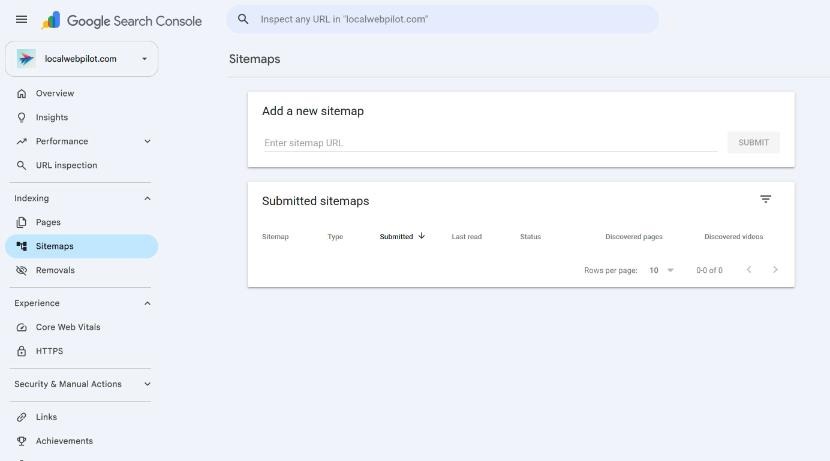
- In Search Console, pick your property and open Sitemaps, under Indexing.
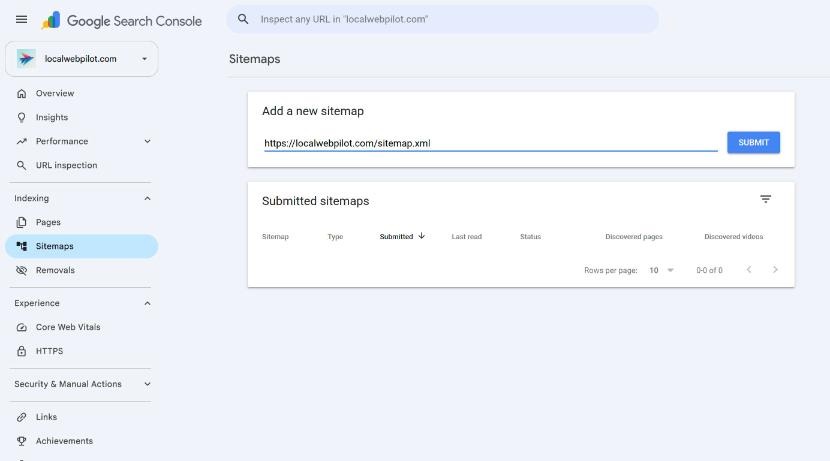
- Under Add a new sitemap, type the full address, for example https://localwebpilot.com/sitemap.xml.
- Press Submit. You should see a message that it was submitted.
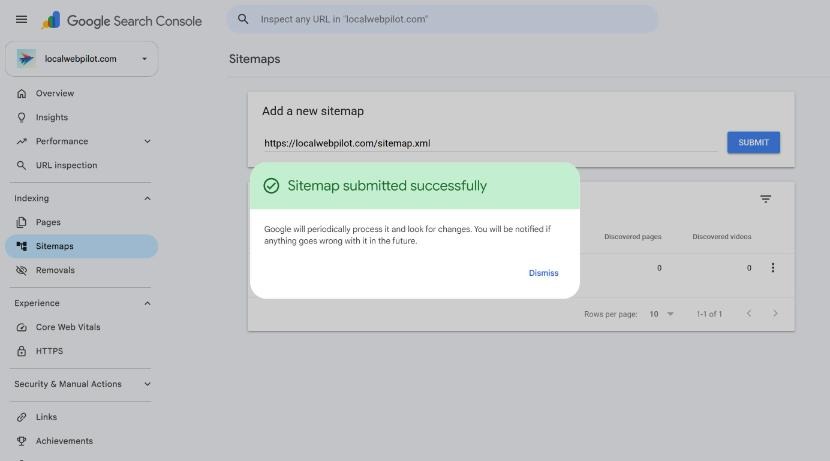
A submitted sitemap is a hint, not a promise. It helps Google find your pages. It does not make Google list them.
If it says Couldn't fetch
Do not panic. Google says some of these errors are temporary: wait a bit, and it will try a few more times before it stops.
To check for yourself, open the sitemap address in a browser, then use the URL Inspection tool and run its live test on the address.
The order for moving a site
Two cases, and they are not the same.
- The addresses change. Redirect every old address to its matching new page, not all to the home page. Google treats 301 and 308 as permanent. Keep the redirects for at least a year. Keep both the old and the new site verified. The order is: redirects ready, any building-time robots.txt block or noindex tag taken off, then DNS moves, then the old pieces go last.
- Only the host changes and every address stays the same. Prepare the new server, lower your DNS TTL to a few hours at least a week before, take off any robots.txt block or noindex tag you used while building, move DNS, watch it, and shut the old server down last.
The Change of Address tool is for moving to a new domain, or a subdomain to another domain. A move to a new platform on the same domain does not need it.
After the move, submit the new sitemap and keep the old one submitted next to it (Google says warnings about its redirecting addresses are normal), and watch the Page indexing report. Test a handful of old links after each step. Each should land on a page that loads.
Check that AI assistants can read the site
Some security settings let Google in but turn other crawlers away, or show a "Just a moment" page. The crawlers publish their names:
- OpenAI: GPTBot, OAI-SearchBot and ChatGPT-User.
- Anthropic: ClaudeBot, Claude-User and Claude-SearchBot.
- Perplexity: PerplexityBot and Perplexity-User.
A quick test: request your /robots.txt as each of them, for example with curl -A "GPTBot" https://yoursite.example/robots.txt. You want plain text and a 200. A "Just a moment" page or a 403 means they are blocked. Read what the file says, too: a 200 can still say Disallow: /. And a real crawler comes from its own network addresses, so treat this as a first check, not proof.
Where this comes from
- Search Console: manage access and permissions
- Search Console: verify your site ownership
- Search Console: submit a sitemap
- Google Search Central: build and submit a sitemap
- Google Search Central: site move with URL changes
- Google Search Central: site move without URL changes
- Google Search Central: redirects and Google Search
- OpenAI: its crawlers
- Anthropic: its crawlers
- Perplexity: its crawlers